





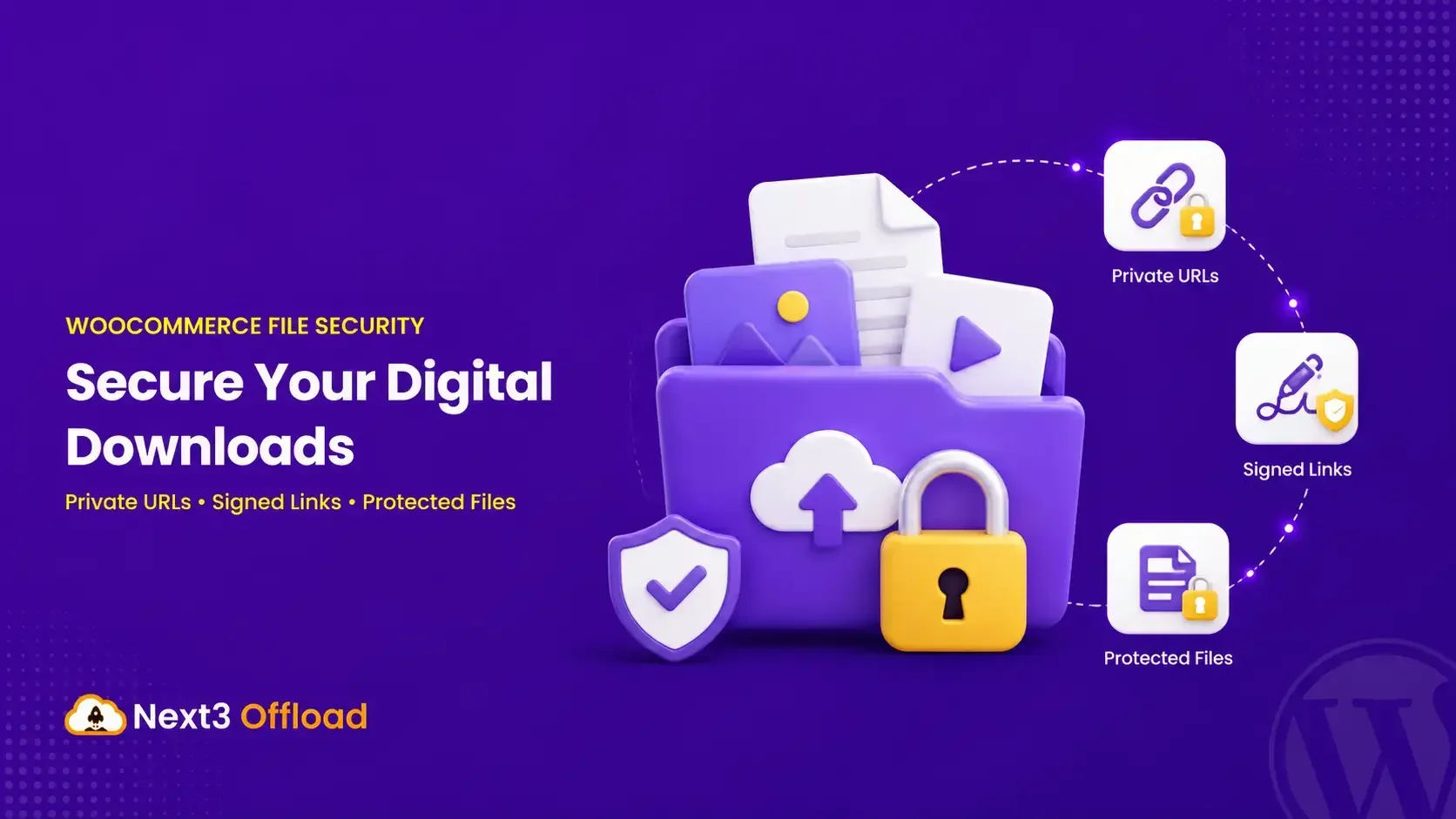
Selling digital products through WooCommerce is convenient, but keeping those files accessible only to paying customers requires more than adding a download button. PDFs, eBooks, software packages, templates, and ZIP files can remain exposed if their original storage URLs are publicly accessible.
To secure WooCommerce downloadable files, you need to control who can download them and how the files are delivered. WooCommerce provides purchase based download permissions, while protected storage and private URLs can add another layer of control.
This guide explains how these protections work, how to configure WooCommerce downloads, and how Next3 Offload can help manage cloud hosted downloadable files.
Before choosing a delivery method, understand how WordPress media offloading moves files from local hosting to cloud storage and changes how websites serve those files.
To secure WooCommerce downloadable files, configure purchase based download permissions, use a protected file delivery method, and restrict direct access to the original files. WooCommerce provides download limits, expiration settings, and controlled delivery methods. For cloud hosted files, private object storage and signed URLs can help prevent permanent public access.
Why WooCommerce Downloadable Files Need Protection
WooCommerce downloadable file protection helps sellers control access to digital products after purchase. Without suitable protection, someone who obtains a direct file URL may be able to retrieve the product without going through checkout.
Consider a store selling a premium design template. A customer purchases the template and receives a WooCommerce download link. That link may be governed by the customer’s order permissions.
However, if the template also exists at a publicly accessible Media Library URL, someone with that original address might download it directly.
This creates two different access paths. One passes through WooCommerce, while the other may bypass its purchase checks.
What happens when downloadable files are publicly accessible?
Public access can allow people with the original file URL to download or share a product without completing a purchase.
The main concerns include unauthorized distribution, bypassed download limits, and reduced control over paid content. The level of risk depends on the product, its value, and how the file is stored.
Not every downloadable file needs strict restrictions. Free resources, public documentation, and promotional downloads may be intended for open access.
For paid digital products, however, sellers should verify that the original file cannot be retrieved without authorization.
Public URLs vs. Private Download URLs
The difference between public and private download URLs is how access to the underlying file is controlled.
A public URL generally allows anyone with the address to request the file. A protected download endpoint checks authorization, while a signed URL typically grants temporary access to a private resource.
These approaches are related, but they are not interchangeable.
| Feature | Public file URL | Permission checked download | Signed URL |
| Access requirement | Usually none | Valid download authorization | Valid signature |
| Expiration | Usually permanent | Based on configured permissions | Based on signature expiration |
| Link sharing | Anyone with the URL may access | Depends on authorization checks | Anyone with a valid signed link may access |
| Original file protection | Not necessarily protected | Depends on storage configuration | Requires private or otherwise restricted origin access |
| Typical use | Free public files | Purchased digital products | Temporary cloud file delivery |
| Main limitation | Direct access may bypass checkout | Does not automatically protect a separate public URL | A valid link may be reused until expiration |
What is a signed download URL?
A signed URL is a link containing authorization information that a storage or delivery service can verify.
For example, a private cloud object might be delivered through a URL containing a signature and expiration parameters. The storage service checks those values before allowing the request.
After the signature expires, a new request using the same URL should be rejected by the correctly configured service.
Signed URLs are often called bearer links. Anyone who obtains a valid link may be able to use it while it remains valid. This is why expiration periods and storage permissions matter.
Does an expiring URL make a downloadable file private?
No. An expiring URL does not protect a file if the same file remains accessible through another permanent public address.
Imagine that a customer receives a signed link to a private ZIP file. The signed link expires after its configured validity period.
If the ZIP file is also available through an unrestricted CDN or original storage URL, someone could bypass the signed link entirely.
Effective protection requires the underlying file and its alternate delivery paths to be restricted appropriately.
How WooCommerce Handles Download Permissions
WooCommerce includes native controls for determining when customers receive downloadable products and how those files are delivered.
These settings are often sufficient for stores that keep their files on a properly protected local server.
Configure WooCommerce downloadable product settings
Open your WordPress dashboard and navigate to:
WooCommerce → Settings → Products → Downloadable products
Find the File download method setting. WooCommerce offers three main methods.
1. Force downloads
WooCommerce delivers the file through PHP rather than redirecting customers to its original URL.
This helps prevent direct linking through the WooCommerce download process. However, you must still protect the original file location separately.
Force downloads can place additional demands on PHP resources, particularly for large files.
2. X-Accel-Redirect/X-Sendfile
This method allows a properly configured web server to handle file delivery after authorization.
It can be suitable for larger downloads because the web server handles the file transfer. However, it requires hosting support and correct server configuration.
3. Redirect only (insecure)
WooCommerce redirects the customer to the file URL.
If that destination is public, anyone with the URL may access the file. WooCommerce therefore identifies this method as insecure for ordinary public file delivery.
A separate integration that generates restricted, temporary cloud URLs may provide additional controls, but its actual behavior must be verified.
Set download limits and expiration
When editing a WooCommerce product, enable the Downloadable option in the Product data area.
You can then configure:
- Downloadable files: The files included with the product.
- Download limit: How many times a customer can download the product.
- Download expiry: The number of days a customer’s download permission remains valid.
These settings control the customer’s WooCommerce download entitlement. They do not automatically set the expiration period of a separate cloud storage signed URL.
Configure customer access restrictions
WooCommerce also provides a Downloads require login option and a setting to grant downloadable access after payment.
Requiring login can add account based access control for registered purchasers. Stores that want all customers to authenticate should also review their guest checkout settings.
Granting access after payment allows eligible customers to download products before an order containing physical goods reaches Completed status.
Choose settings based on your fulfillment workflow rather than assuming the strictest configuration is always the most convenient.
Check where downloadable files are stored
WooCommerce recommends uploading protected downloadable files through the product editor rather than selecting an existing public Media Library file.
Files uploaded through the WooCommerce product workflow can be placed in the woocommerce_uploads directory.
WooCommerce adds protection for that directory, but the actual effectiveness depends on server configuration. NGINX, for example, requires appropriate rules because it does not process .htaccess files.
You should also review WooCommerce → Settings → Products → Approved download directories.
This feature controls which locations WooCommerce is permitted to use for product downloads. It does not, by itself, make every file in an approved location private.
How to Protect WooCommerce Downloadable Files With Next3 Offload
Next3 Offload provides cloud media management for WordPress, including functionality for WooCommerce downloadable files stored in the WordPress Media Library.
Its v4.5.0 release introduced privacy aware delivery for WooCommerce downloadable products. According to the official release notes, eligible public downloadable files can be upgraded to protected delivery when first accessed, allowing the cloud URL to use a signed link instead of a permanent public URL.
The release also introduced a WooCommerce media audit for reviewing product media status.
The following workflow combines verified WooCommerce settings with documented Next3 Offload capabilities. Exact private delivery behavior should be checked against your plugin version and cloud provider.
Step 1: Configure your cloud storage connection
Install and activate Next3 Offload, then configure a supported cloud storage provider using the official setup documentation.
Verify that your storage connection is working before moving paid downloadable products.
Cloud storage can help manage files outside the WordPress hosting environment, but moving a file to the cloud does not automatically make it private.
Review your bucket or storage access settings and confirm whether direct public access is permitted.
For an Amazon S3 setup, follow our guide on how to upload WordPress media to Amazon S3 before configuring protected downloads.
Step 2: Enable offloading for downloadable file types
Review the official Next3 Offload storage settings to configure automatic offloading and select the file extensions your store needs.
The documented settings include an option to offload multiple MIME types and select permitted file extensions.
Make sure the formats used by your digital products, such as PDF or ZIP, are included in your offloading configuration.
After changing settings, confirm that a non sensitive test file can be uploaded and accessed through the intended delivery workflow.
Step 3: Add the file to your WooCommerce product
Create or edit a WooCommerce product and enable Downloadable.
Add the intended file, then configure its download limit and expiration rules.
For this Next3 Offload workflow, pay particular attention to files stored in the WordPress Media Library because the v4.5.0 protection announcement specifically describes those files.
If you use files uploaded through a different directory or an external system, verify that they are covered before assuming the same protection applies.
Step 4: Verify privacy aware cloud delivery
Next3 Offload introduced WooCommerce downloadable-file protection in v4.5.0, including privacy aware delivery and signed cloud links for eligible files.
This is intended to replace a permanent public cloud delivery URL with a signed URL for the relevant workflow.
Before relying on it, confirm that the file is offloaded, the applicable privacy controls are active, and the underlying cloud object is not accessible through an unrestricted public URL.
Do not assume the first access upgrade has occurred merely because the file appears in a WooCommerce product.
Step 5: Review the WooCommerce media audit
Open the Next3 Offload Tools tab and locate the WooCommerce media audit feature, available from v4.5.0.
The audit reports WooCommerce media status, including:
- Offloaded files
- Local only files
- Broken media
- Protected media
It also reports cloud storage used by WooCommerce product images and downloadable files.
Use this information to identify files requiring further inspection. A protected status should be followed by actual access testing rather than treated as a substitute for it.
Step 6: Test the complete purchase and download process
Create a low value or staging only downloadable product and complete a test purchase.
Verify that the authorized customer can download the file. Then check whether an unauthorized visitor can access the WooCommerce download endpoint, original storage URL, or any alternate CDN address.
If signed URLs are involved, verify their expiration behavior using your actual provider configuration.
The goal is not simply to generate a signed URL. It is to ensure that the customer can access the purchased product while unauthorized direct requests are rejected.
For the feature details and supported release, see the Next3 Offload release notes.
How to Test Whether Your Downloadable Files Are Protected
A download protection test should check both legitimate customer access and unauthorized access to the underlying file.
Perform these checks using test products and files that contain no sensitive customer information.
| Test | Action | Expected result |
| Authorized purchase | Buy the test product and use its WooCommerce link | Download succeeds |
| Unauthorized download | Attempt the WooCommerce link without valid permission | Access is rejected |
| Original file URL | Open the original protected file address in a private browser session | Direct access is denied |
| Cloud storage URL | Request the underlying private object without authorization | Storage rejects the request |
| Signed URL expiration | Retry a previously valid signed URL after its configured expiry | New request is rejected |
| Download limit | Exhaust the configured WooCommerce limit | Further unauthorized attempts are blocked |
| CDN access | Test alternate delivery URLs | No unrestricted path exposes the protected file |
| Customer recovery | Request a fresh authorized download after an expired link | Customer can obtain a working link when still entitled |
What should you do if the original file URL still works?
First, determine whether the file is intended to be private.If it is a paid downloadable product, check whether the file exists in a public Media Library directory, whether the cloud object permits anonymous access, and whether a CDN provides an unrestricted copy.
For Next3 Offload, review the file’s offload and protection status and confirm that the applicable delivery configuration is supported.
Avoid deleting or moving production files before confirming how existing orders and download links will be affected.
What if customers cannot download purchased files?
Check the WooCommerce order status, download permissions, download limit, and expiration setting.
Next, verify that the stored file exists and that your configured delivery method can retrieve it.
For cloud hosted files, inspect storage credentials, private object permissions, signed URL validity, and any CDN behavior.
If you change download permissions or file URLs, test the customer experience again before applying the same change across other products.
Common WooCommerce Download Security Mistakes
Many downloadable file security problems come from assuming that a setting protects more than it actually does.
Using public Media Library URLs for paid files
The standard WordPress Media Library is designed to serve media publicly. Selecting a file from the Media Library does not automatically restrict its original URL.
If a file is sold as a paid download, verify its underlying storage permissions rather than relying only on its WooCommerce product association.
Assuming download limits prevent file sharing
A download limit restricts downloads through WooCommerce’s permission system.
It cannot enforce that limit against a separate public file URL. Once a customer downloads a file, it also cannot prevent that customer from copying the downloaded content.
Using Redirect only without checking the destination
Redirect only exposes the destination URL.
If that destination is a permanent public file address, a purchaser may be able to share it with others.
When using an external delivery integration, confirm whether the destination is temporary and whether the underlying object is actually private.
Leaving old public copies accessible
Changing a delivery URL does not necessarily remove older copies of a file. A previous local upload, public cloud object, or CDN copy may remain accessible.
When migrating to protected storage, include old locations in your access testing and remove exposure only after verifying that authorized downloads continue working.
Ignoring server and CDN configuration
WooCommerce download protection depends partly on the server and storage environment. For example, an .htaccess restriction does not protect a directory on NGINX unless corresponding NGINX rules are configured.
Similarly, a CDN may expose an object if its origin or cache access configuration permits unrestricted requests.
When Do You Need Next3 Offload?
Next3 Offload is most relevant when your WooCommerce store already uses, or plans to use, cloud media storage and needs additional control over media delivery.
WooCommerce’s native features may be sufficient for stores with a relatively small collection of downloadable files hosted in a properly protected local directory.
A cloud offloading solution becomes more relevant when downloadable files are stored in the Media Library, managed across cloud infrastructure, or delivered through external URLs.
| Store situation | Recommended approach |
| Small digital store with protected local files | Start with native WooCommerce controls |
| Paid files exposed through public Media Library URLs | Restrict the original files and review protected storage |
| WooCommerce downloads stored in cloud object storage | Evaluate private objects and signed URL delivery |
| Large WordPress Media Library with cloud offloading | Consider Next3 Offload’s storage and delivery workflow |
| Need to inspect WooCommerce media offload status | Review the Next3 Offload WooCommerce media audit |
| Strict anti-piracy or DRM requirements | Evaluate specialized protection beyond expiring links |
Next3 Offload’s documented WooCommerce functionality includes privacy aware downloadable file delivery, signed cloud URLs for eligible files, and a media audit.
Its purchase gated private image functionality is a separate feature covering WooCommerce featured, gallery, and variation images.
Neither feature should be interpreted as a guarantee against redistribution after an authorized customer has downloaded a file.
Frequently Asked Questions
Yes, if the underlying file has a publicly accessible URL. WooCommerce can restrict access through its download system, but a separate public storage address may bypass those checks. Protect the original file and test anonymous access.
WooCommerce includes protected download methods and upload directory safeguards. However, actual protection depends on how the file was uploaded, its storage location, and server configuration. Existing public Media Library URLs require particular attention.
Private files need storage-level restrictions, and signed URLs only grant temporary access. A signed link is effective only when the storage system itself blocks unauthorized requests.
Anyone who obtains a valid signed URL may use it until it expires. Short validity periods reduce the opportunity for reuse, but they do not prevent customers from sharing files they have already downloaded.
WooCommerce can expire a customer’s download permission after a configured number of days. Separately, a cloud provider may reject a signed URL when its shorter validity period ends. These are different expiration mechanisms.
Yes. Next3 Offload v4.5.0 introduced privacy aware delivery for WooCommerce downloadable files stored in the WordPress Media Library. Eligible public files can be upgraded to signed cloud delivery. Confirm the behavior for your storage provider and configuration before using it for production files.
No. Private URLs can help prevent unauthorized direct downloads, but customers may still copy or redistribute files after receiving them. Products requiring stronger controls may need licensing, watermarking, or other specialized protection measures.
Final Thoughts
To secure WooCommerce downloadable files, begin with WooCommerce’s built in permissions and protected delivery methods. Then verify that the original files cannot be accessed through public storage or CDN URLs.
For stores using cloud media storage, private objects and signed URLs can provide another layer of control. The most important step is testing the full download process from both authorized and unauthorized perspectives.
If your WooCommerce products use cloud hosted media, explore Next3 Offload and its official documentation to evaluate its downloadable file protection and media management capabilities.